Enable Unknown Sources for Downloader on Firestick & Android TV – Easy 2026 Tutorial
Many IPTV and streaming apps are not available on the Amazon Appstore or Google Play Store. To install these third-party apps on Firestick or Android TV, you must enable “Install Unknown Apps” and use the Downloader app. Follow this easy 2026 guide to set everything up in minutes.
Sideloading allows you to install APK files and third-party apps on Firestick and Android TV devices without using the Amazon Appstore or Google Play Store. It’s the most common way to install IPTV players, streaming apps, and other unavailable applications.
Unlike rooting or jailbreaking, sideloading is a standard feature available on Android-based devices and can be enabled in your device settings.
⚠️ Important: Only download APK files from trusted sources to keep your device secure.
Downloader is a free app designed for Fire TV and Android TV devices that helps users install third-party APK apps easily. Created by AFTVnews, the app features a built-in browser, direct URL support, and Downloader codes for quick access to apps, IPTV players, and streaming tools unavailable in official app stores.
How to Set Up Sideloading on Firestick & Android TV
The Downloader app is one of the easiest and most popular tools for sideloading APK files on Firestick and Android TV devices. It lets you download and install third-party apps directly using a URL or Downloader code in just a few steps.
Before installing IPTV apps or other unofficial applications, you must first install the Downloader app and enable the “Install Unknown Apps” permission in your device settings.
Step 1: Install Downloader
Downloader allows Firestick users to download and install third-party apps as the device doesn’t allow downloads via the browser. The app is easy to install as it is available on the Amazon Store.
-
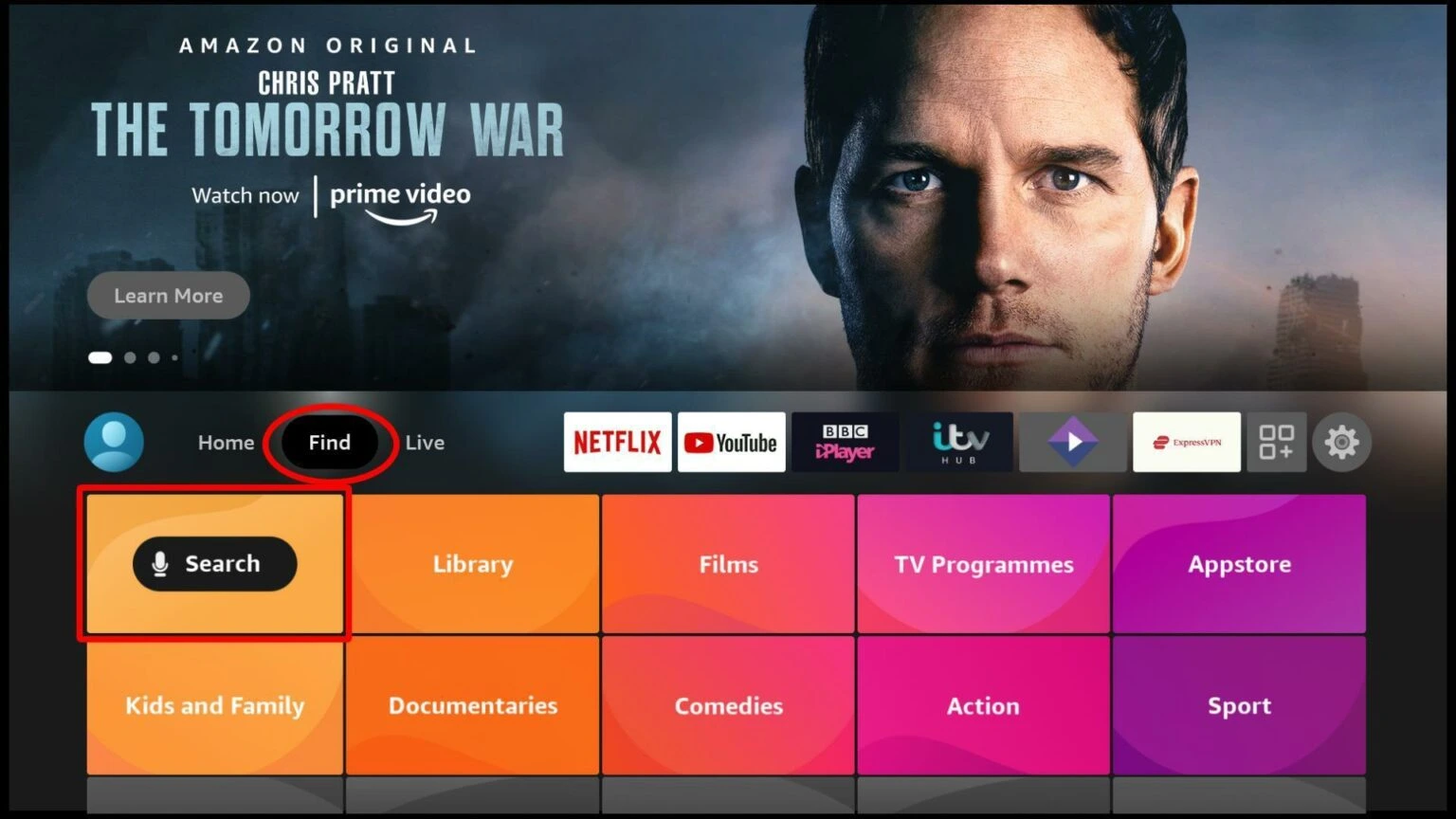
Open Search: On the Firestick main screen, go to
Find, then click Search.
-
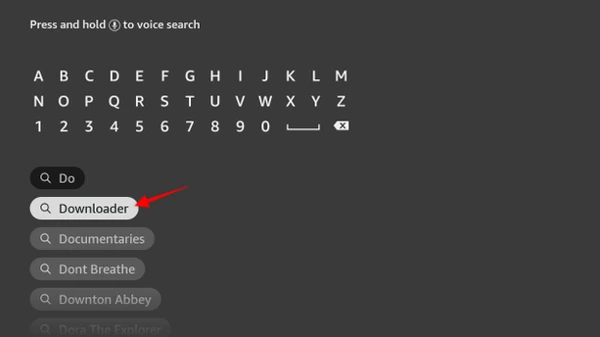
Type Downloader: Start typing Downloader, and you’ll get a
suggestion on the screen. Click it to search for the app.
-
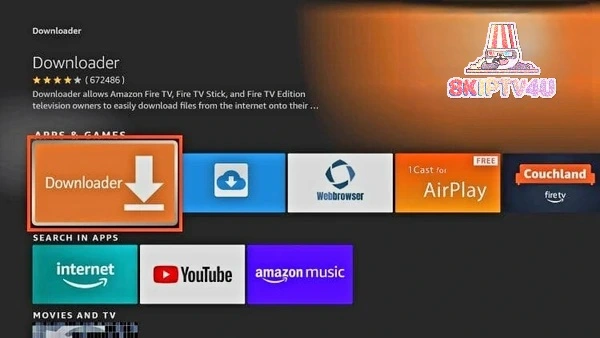
Select the App: Downloader should now appear as the first suggestion. Click on
it, and Download it.
Step 2: Prep Your Firestick
By default, Firestick blocks the installation of third-party apps for security. You will need to tweak these settings before you can install your preferred IPTV players.
Allow "Apps from Unknown Sources"
Granting this permission will let you install apps you sideload via the Downloader app.
-
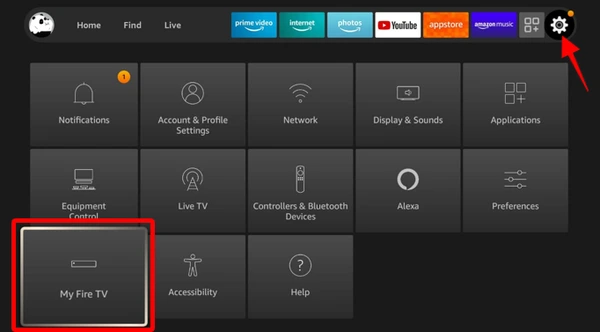
Go to Settings: From the Firestick home screen click My Fire
TV.
-
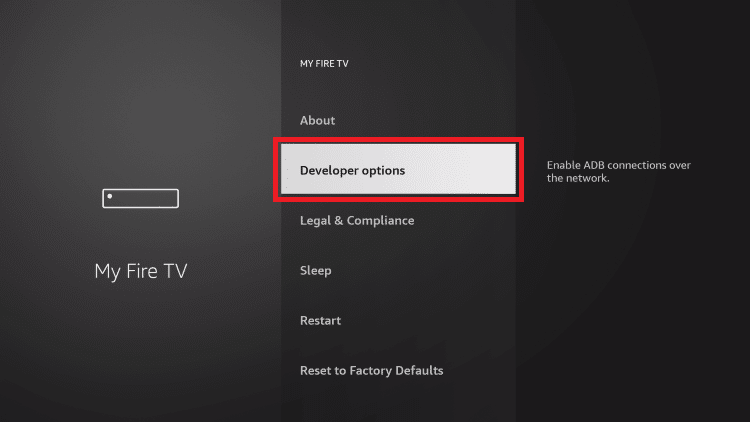
Developer Options: Select Developer options.
-
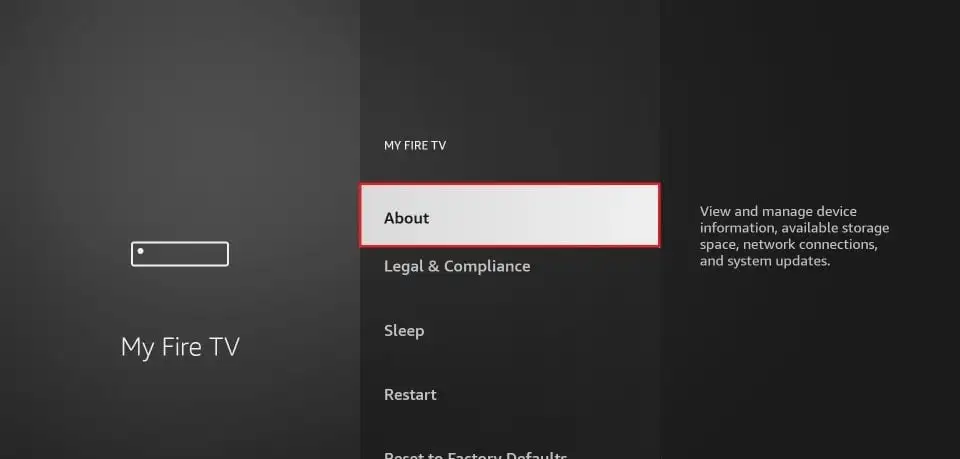
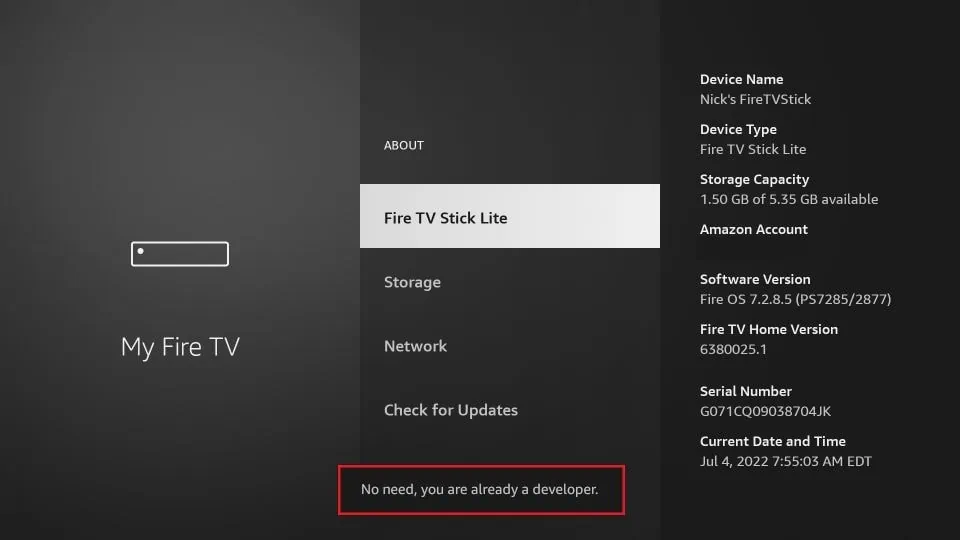
if Developer Options are hidden, click about to enable it. if you
have it skip to step :7.
-
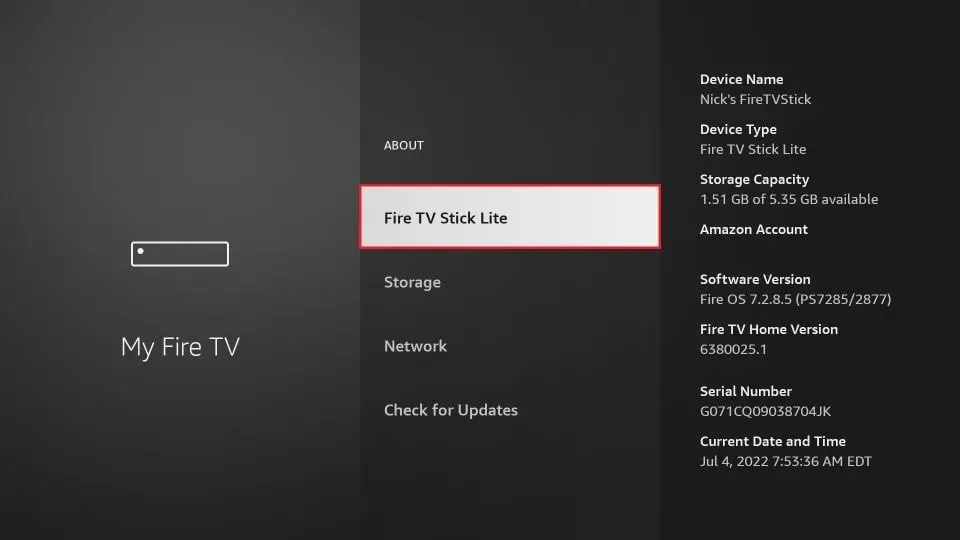
Click on your Fire TV Stick 7 times to unlock Developer Options.
-
After Clicking 7 times you will see message "Developer Options Enabled".
-
Once Developer Options are enabled, select it from the menu.
-
Enable Installation:
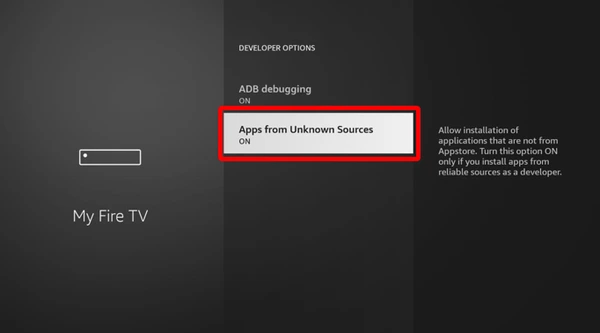
For older devices: Click Apps from Unknown Sources to change the state from Off to On.
For Firestick Lite / Gen 3: Click the option to see a list of apps. Click Downloader to turn the state to On.
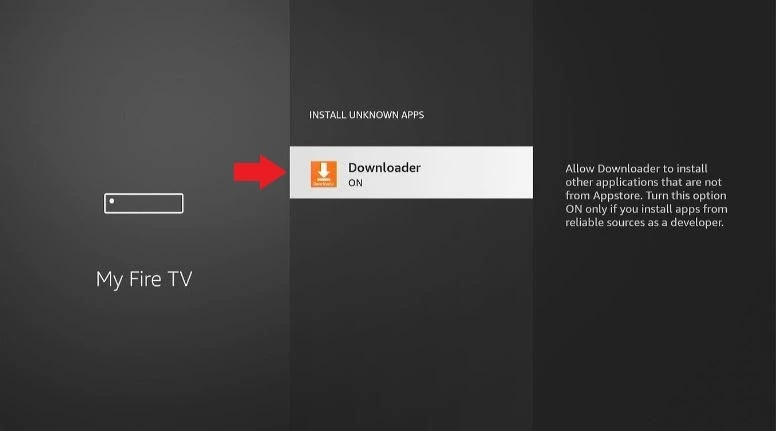
Now, your device can install apps through Downloader.
🚀 How to Install Top IPTV Apps using Downloader Codes
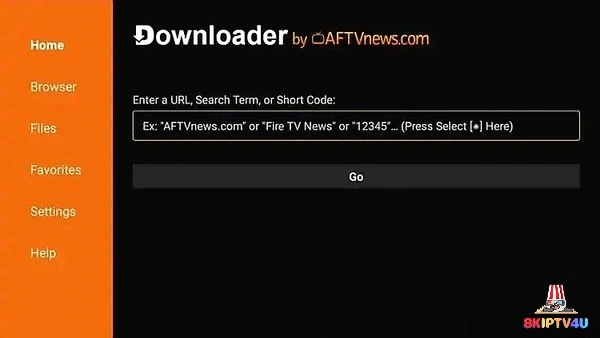
Once you have configured the permissions above, you can install any IPTV player by entering a direct-download code into the Downloader app. Here are the most reliable codes for 2026:
1. IPTV Smarters Pro
The industry standard for Firestick users. Features a great UI and multi-screen support. View full installation guide.
Downloader Code: 250931
2. IBO Player Pro
A premium, lightning-fast player optimized specifically for 4K/8K streaming and Smart TV layouts.
Downloader Code: 923441
3. GSE Smart IPTV
A highly versatile player that supports a massive variety of formats and advanced playlist options.
Downloader Code: 298344
To Install: Simply open your Downloader app, enter one of the codes above into the URL field, and click Go. The app will download and prompt you to install automatically.